The quick version
The entire process takes under two minutes. Choose a type, enter your data, adjust the design, scan-test the preview, and download. No account needed at any step.
The Complete Walkthrough
QR Studio was designed so that creating a high-quality, secure QR code is as frictionless as possible. You don't need to be a technical expert to build powerful connections between the physical and digital worlds. Here is exactly what to do.
Choose Your QR Code Type
Before entering any information, you must first tell the system what kind of action you want the scanner to perform. Each type contains a specific data payload that instructs the user's smartphone how to handle the content. QR Studio supports seven distinct types:
- URL (Website Links): The most common and versatile choice. Creates a code that instantly opens a web page: your homepage, a digital menu, a landing page, or a social media profile. Always include the full address starting with
https://. - vCard (Digital Business Card): Embeds your contact details so users are instantly prompted to save you as a new contact in their phone, effortless networking.
- Wi-Fi Credentials: Stores your network name, password, and security type. When scanned, it automatically connects the user to your network: no typing required.
- Plain Text, Email, SMS, Phone Call: Simpler single-action codes, perfect for sharing a quick message, triggering a pre-formatted email, or initiating a call.
Enter Your Specific Data
Once you have selected a type, the input fields adapt automatically. It is critical to enter your information carefully at this step. Double-check for typos, static QR codes are permanent and cannot be edited after creation.
- For URLs, paste the complete address, not a shortened version.
- For vCards, fill out each field as thoroughly as possible. The more information you include, the more value the recipient gets from a single scan.
- For Wi-Fi, ensure the network name is exact and the security type matches your router settings (e.g., WPA/WPA2). Passwords are case-sensitive.
Customize Your Design and Technical Options
This is where you can make the QR code your own and configure it for the environment it will live in.
- Color Scheme: Select custom foreground and background colors to match your branding. For reliable scanning, always ensure strong contrast between the two, avoid light on light.
- Corner Styles: Choose from five distinct corner styles: square, rounded, dots, classy, and heart. To give your code a modern aesthetic that fits your design language.
- Error Correction Level: A crucial technical setting. Higher error correction makes the code more robust against physical damage, dirt, or obstruction. Levels range from Low (7% damage recovery) to High (30%). For outdoor printing or product packaging, choose Q or H.
Preview and Test Your Code
After configuring your data and design, a live preview appears on screen. Do not skip this step. Before downloading, open your smartphone's camera app and perform a real test scan of the on-screen preview. This confirms that the data is correct, the design is scannable, and the result is exactly what you intended. A brief internal test now prevents problems for your end users later.
Select Your File Format and Download
Once you are completely satisfied, click the Download button and choose the format that suits your use case. QR Studio offers both raster and vector outputs:
The download is completely free: no accounts to manage, no hidden watermarks, and no usage limits. Your custom QR code is ready for the world.
What You Can Actually Customize
"Custom QR code" covers four separate things, and only one of them touches the data. These are real exports from the generator, all encoding this same page.
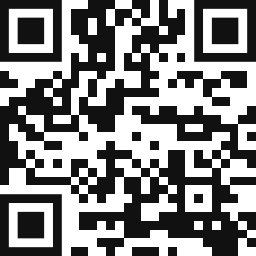
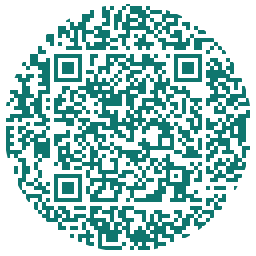
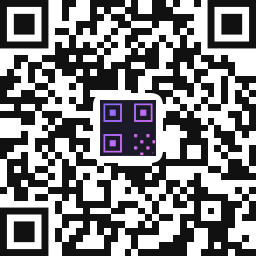
The four levers, in the order they matter:
- Colour. Any foreground and background you like. Cameras read brightness rather than hue, so what matters is that the foreground stays clearly darker than the background. The generator warns you before you download something too pale to scan.
- Module shape. Square, rounded, dots or classy. This restyles the little blocks inside a normal square code.
- The outline of the whole code. A different thing entirely. Heart, circle and speech bubble reshape the code itself rather than its modules.
- A logo. Drop any image into the middle and error correction rises to compensate. See the QR code with logo generator for how large it can safely be.
None of this changes what the code contains. A custom QR code and a plain one holding the same link are the same data wearing different clothes, which is why styling never breaks a code on its own. What breaks codes is poor contrast, covering too much of the code, or printing it too small.
Start From the Type You Need
Each of these opens the generator with the right fields already in place, and each has a short guide of its own:
- Wi-Fi QR code - connects a phone to your network without anyone typing the password.
- vCard QR code - saves your full contact details straight into the phone's address book.
- Email QR code - opens a new message with the address, subject and body already filled in.
- SMS QR code - opens a text message to a set number with the wording ready to send.
- QR code with a logo - your mark in the middle of the code.
- Free QR code with no sign-up - what you get without an account, and what never expires.
Pro Tips for Best Results
A few small decisions during creation can make a significant difference to the real-world performance of your QR code. Always test your code on multiple devices before publishing or printing, different camera apps and QR reader apps can behave slightly differently. If your code will be printed smaller than 2cm × 2cm, choose a higher error correction level to compensate for the reduced module size. For codes going onto dark or textured backgrounds, consider inverting the color scheme: a light foreground on a dark background can stand out more clearly in challenging lighting conditions.
Finally, for any physical print application: business cards, posters, packaging. Always download the SVG or EPS vector format and hand that file to your print designer or print house. Never upscale a PNG or JPG for large-format printing; the result will be blurry and may not scan reliably at full size.
Frequently Asked Questions
Open the generator, pick the type of thing you are encoding, enter your data, then change the colours, module shape or outline and add a logo if you want one. Preview it, scan the preview with your own phone, and download. The whole thing takes under a minute and needs no account.
You cannot restyle a finished image, but you can rebuild it in seconds. A static QR code is just a picture of your data, so enter the same link here, style it however you like, and download a fresh one. The old code keeps working.
Yes. No account, no watermark, no cap on how many you make, and PNG, SVG, EPS and PDF downloads are all included. The codes are static, so they never expire and never stop working if this site changes.
Styling on its own does not, because it never changes the data. Codes fail for three other reasons: not enough contrast between foreground and background, a logo covering too much of the code, or printing it too small. Scan the printed version before you use it.
Any, as long as the foreground is clearly darker than the background. Cameras read brightness, not hue, so a deep red on white is reliable while a pale pastel on cream often is not. The contrast meter under the colour pickers flags a risky pair before you download.
Yes. Upload a PNG, JPG, SVG or WebP up to 2 MB and it drops into the centre, with error correction raised automatically to cover what it hides. Keep it to 25% of the width or less.
Yes. Beyond restyling the modules as rounded corners or dots, the whole code can be laid out as a heart, a circle or a speech bubble, with the scannable code held inside the shape.
PNG for anything that stays on a screen. SVG for anything going to a printer, because it is vector and stays sharp at any size. EPS and PDF are there for design and print workflows. Never scale up a PNG for large-format printing.
Keep reading
Related pages on QR Studio.
- adding a logo to the middleThe one customisation most people want next.
- what the code is actually storingUseful background if the terminology is new.
- how large a logo can safely beMeasured across 248 codes.
- what to point it atIdeas, if you have the tool and not the plan.
- why this one costs nothingWhat free means here, and what we do with your data.
Ready to build your first QR code?
Free, instant, and no sign-up required. Follow the steps above in the live tool.
⚡ Open QR Generator